Introducing Incidents
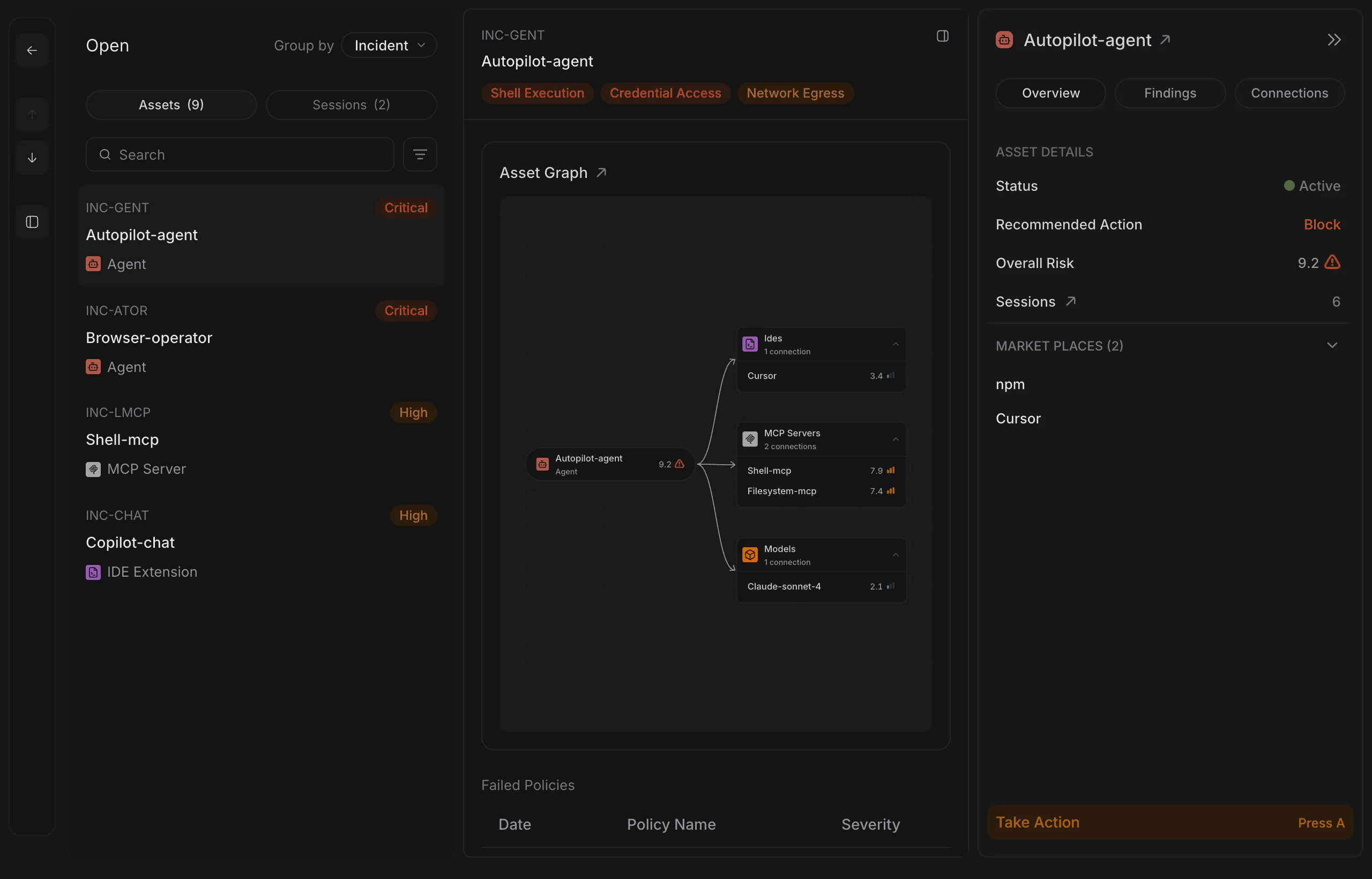
A new Incidents page gives you one place to work through risk. It replaces Asset Access in the sidebar, where it sits at the top with two entries: Open and Resolved. The page has two tabs. Assets lists AI tools that no organization-wide action covers yet, highest risk first. Sessions lists agent sessions that Surface has tagged as risky, such as one with Data Exfiltration.
When you pick an incident, its details open in the middle of the page, as shown above. An asset shows its graph and the policies it failed. A session shows its trace (each step the agent took) or the full conversation. The side panel on the right holds Take Action, and the sidebar folds away to give the incident more room.
To move through the list from the keyboard, use the ↑ and ↓ keys, or J and K. Press G then O to open Incidents, and G then R to jump to Resolved. On the Assets tab, you can filter by Severity and Asset Type. Asset Access still opens from its old web address.
Resolve and Reopen Session Incidents
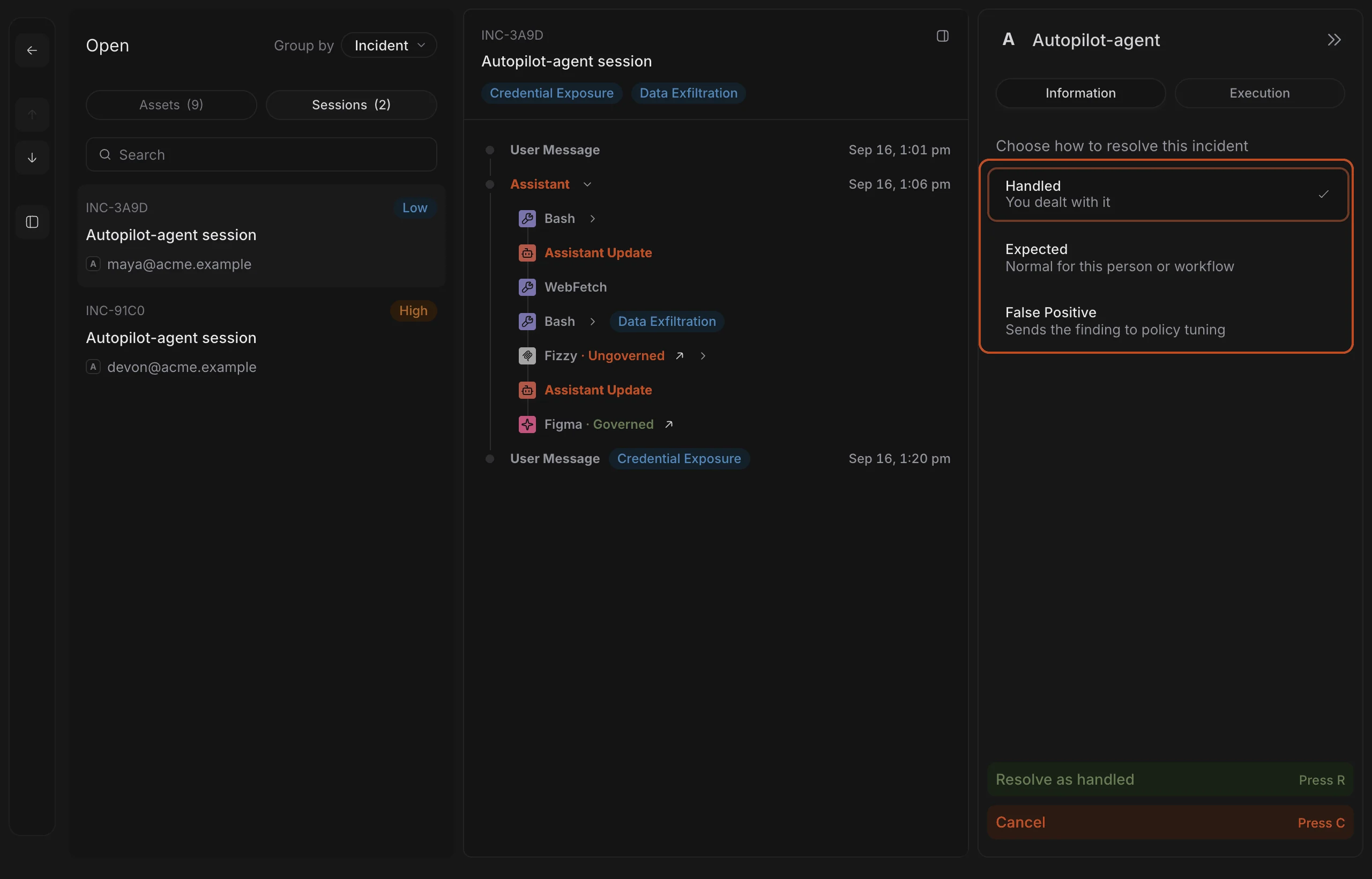
Admins and owners can now resolve a session incident. Choose Take Action in the side panel and pick how it ended, as shown above. Handled means you dealt with it, Expected means it is normal for that person or workflow, and False Positive means the policy flagged something it shouldn’t have. Handled is chosen by default. For an asset, Take Action now starts on Global, which applies the action on every endpoint where the asset is found.
A resolved session shows its status, the date and who resolved it under Resolution in the side panel. You can Reopen it at any time. Surface also reopens it on its own if a new risk is tagged in that session.
Lists and counts update live, so a colleague’s change shows up without a refresh. Every resolve and reopen is recorded in the Audit Log.
Enable or Disable Any Policy
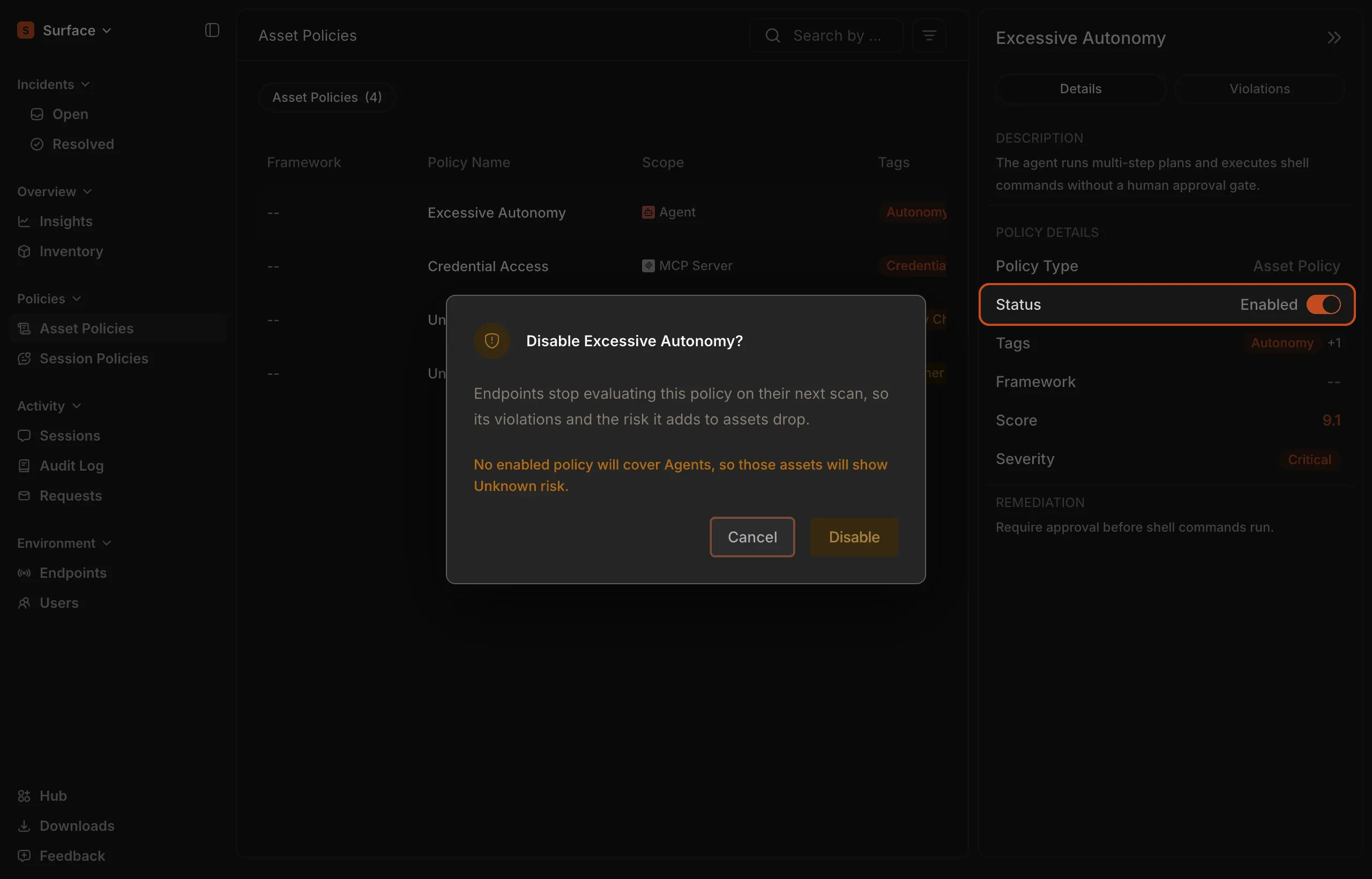
Admins can now switch any policy off for their organization, and back on again. Open a policy and use the Status switch in its side panel. Other members see whether the policy is Enabled or Disabled.
The change takes effect from each endpoint’s next scan, usually within about 15 minutes. After an asset policy is turned off, its violations and the risk it adds to assets go away. After a session policy is turned off, new sessions are no longer tagged by it, and past tags stay.
Before you turn a policy off, a confirmation dialog explains what will change. If no other enabled policy covers a type of asset, the dialog warns you that those assets will show Unknown risk, as shown above. Every change is recorded in the Audit Log.
Leave Out Endpoints From a Global Action
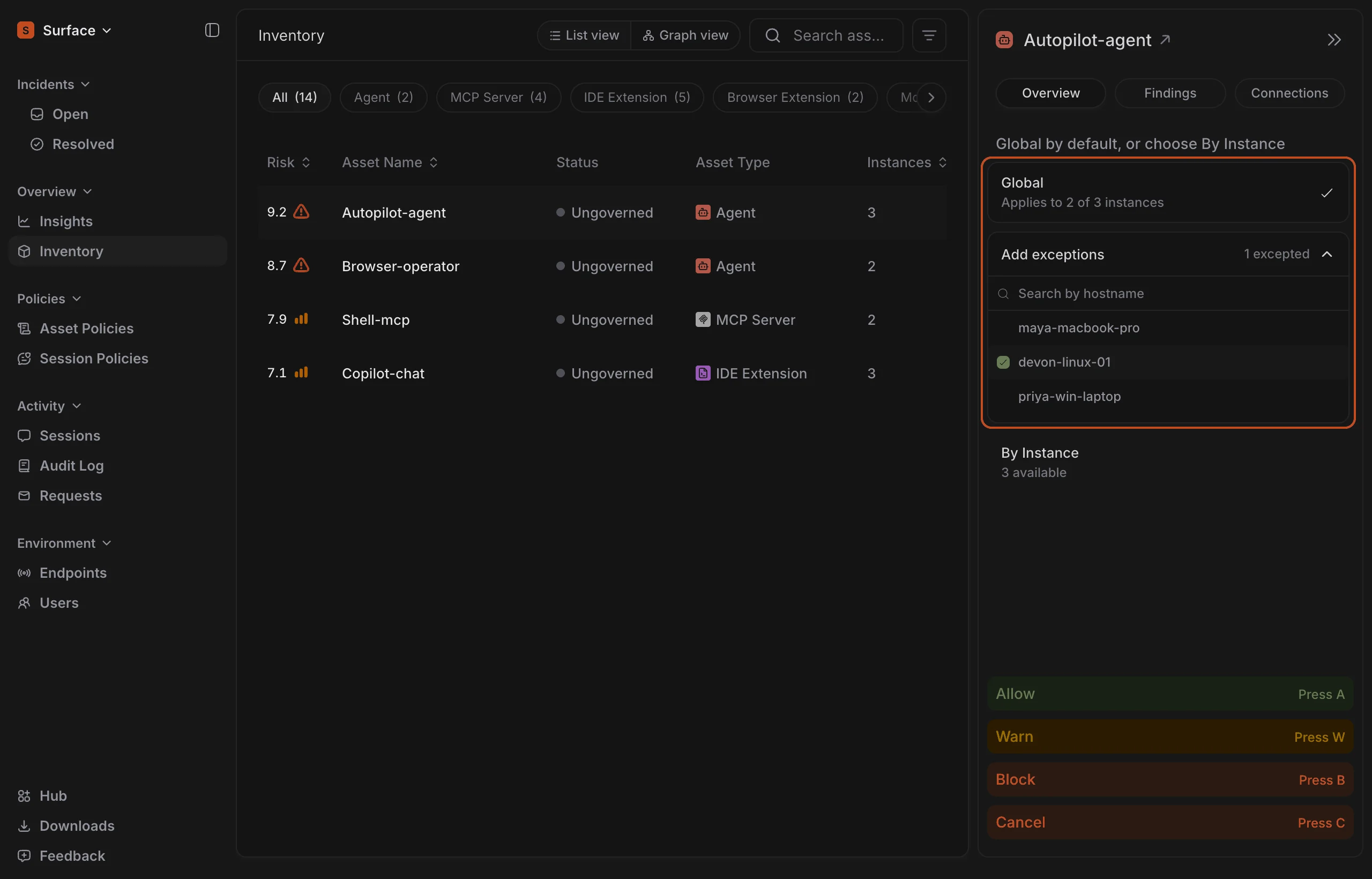
When you take action on an asset with Global scope, you can now leave out specific endpoints. Open Add exceptions under Global and tick the devices to skip, as shown above. Global then reads, for example, Applies to 2 of 3 instances.
Every other endpoint, including ones that install the asset later, still gets the global action. Previously, to leave out one device, you had to switch to By Instance and pick every other endpoint by hand.
Voice and Meeting Agents
Surface now groups dictation and meeting-notes apps, such as Wispr Flow, superwhisper, Granola and Voicenotes, as voice and meeting agents, and checks them for risks specific to these apps. It also finds Voicenotes for the first time, Granola and Wispr Flow on Windows, and the Granola Companion and Voicenotes browser extensions.
On a Mac, Surface flags any of these apps that asks for permission to record the computer’s sound, which lets it capture the other people on a call. For Wispr Flow, it also reads the app’s settings and flags when it sends text from your screen to Wispr, syncs your dictation history to the cloud, has internal data sharing turned on, or keeps meeting transcripts forever.
Support for More Coding Agents
Surface now discovers Muse Code, Agents Everywhere, Kiro Crew, Mercury CLI, Cusp, Abacus AI CLI, Croo, Garuda, Nexrall Code, GigaCode CLI, Kit, Octomind, X-Code CLI, min-agent and Kubic. Where these agents document their skills and MCP servers (the add-ons that give an agent new tools), Surface finds those too.
Surface also finds more for ForgeCode, and finds the skills and MCP servers that Devin CLI picks up from the Windsurf Next and Windsurf Insiders editors.
A Cleaner Layout
Search and filters now sit in the page header, next to the page name, instead of above each table. The side panel runs the full height of the page as its own card. When space is tight, the breadcrumbs (the page path at the top) shorten, but the current page name always stays visible.
Large counts in the sidebar are shortened, for example 10K. Downloads and Insights now stop at a comfortable width on very wide screens.
Fewer Endpoints Marked Stale
An endpoint is now marked stale after 24 hours without a scan, instead of 30 minutes. A laptop that was closed over lunch no longer shows up as stale, so Needs Attention lists the devices that really need a look.
Fixes
An endpoint’s risk score is now the average of the scores of its assets. Previously it used each asset’s single worst finding, so some endpoints scored higher than any asset they listed, and a few showed odd values such as 19.0.
A global policy that has exceptions for some devices now shows as Global. Previously it showed as Endpoints.
Some Macs get their browser policy from Surface MDM, Surface’s own device management. When you stop managing a browser in Surface, its policy is removed from those Macs. Previously, if a Mac reported an error during the removal, Surface gave up and the policy stayed on the Mac. Surface now keeps trying until the policy is removed.
A Redesigned SuperAlign Website
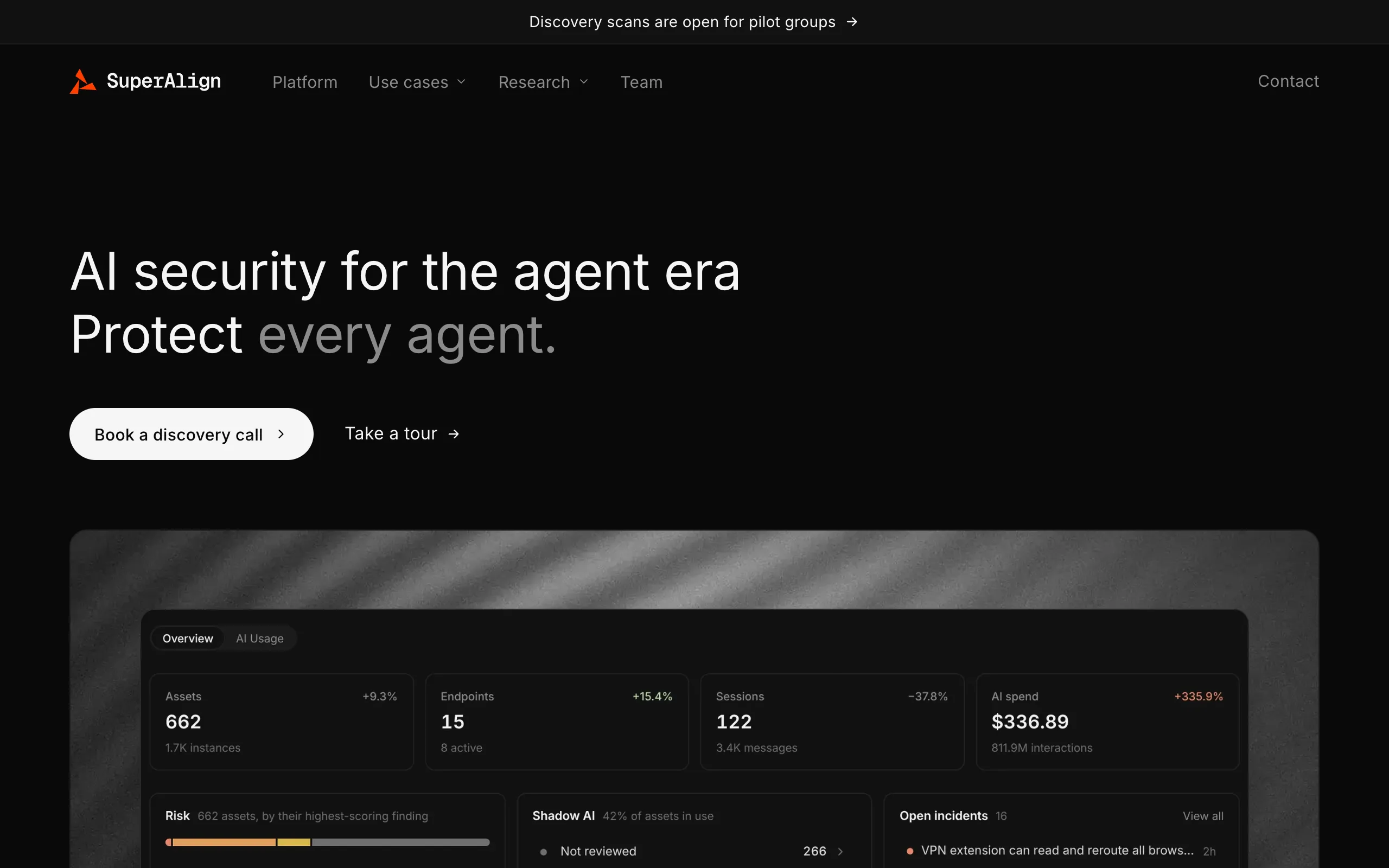
superalign.ai has a new design, as shown above. Every page now uses one dark layout. The homepage leads with Book a discovery call and Take a tour, and Take a tour opens the product tour in a new tab, so the site stays where you left it.
Surface and Radar are now explained together on one Platform page, and the old /surface and /radar addresses lead there. The nine use cases, such as Agent & MCP Security and AI Data Loss Prevention, each have their own page with a live product view and a four-step walkthrough. The Use cases menu gives each one a one-line description.
Pages are also lighter. The homepage is less than half its previous size, and pages no longer load about 180 KB of JavaScript before you can use them. AI assistants such as ChatGPT, Claude and Perplexity can read the site again, and each page has a Markdown version for them.